
Appearance
Adding Athletes
First we need to add your athletes to the roster. Athletes can be added manually or via spreadsheet import. If you use Aktivate (formerly RegisterMyAthlete) we support an enhanced upload that provides the ability to only add athletes that have completed their registration process.
Adding athletes manually
- Click on "Athletes" from the "Manage" tab for your team.
- Click on "Add Athlete"
- Provide the information request in the form.
- Press "Save".
Importing athletes from an Excel file
Follow these instruction to import your team roster from and excel file into meettrax.
- Create an Excel file and save it with the .xlsx extension - OR - download this template file.
- Athlete data should start on line 3. Any data above line 3 will be ignored!
- Add the athlete information in the appropriate columns (in this order).
- Column A - First Name (string, required) - the athlete's first name.
- Column B - Last Name (string, required) - the athlete's last name.
- Column C - Gender ('m' or 'f', required) - the gender of the athlete.
- Column D - k_12_grade (integer, optional) - the grade of the athlete if they are in k through 12.
- Column E - college_grade (integer, optional) - the grade of the athlete if they are in college (1 = Freshman ... 4 = Senior)
- Column F - birthday (MM/DD/YYYY, optional) - the birthday of athlete.
- Column G - TFRRS ID (string, optional) - the TFRRS ID assigned to the athlete.
- Make sure your file looks like this:

- Return to meettrax.
- Click on "Athletes" from the "Manage" tab for your team.
- Click on "Import Athletes".
- Choose the Excel Option.
- Select the file and click 'Import'.
- The file will be processed and you will be notified how many athletes were imported.
As your roster changes you can repeat this process as many times as needed. Duplicates will not be created so long as the athletes name and gender information does not change.
TIP
The import process will never delete athletes. You will need to delete each athlete manually.
Importing athletes from Aktivate
Follow these instruction to import your team roster from Aktivate (formerly Register My Athlete) into meettrax.
- Login to Aktivate.
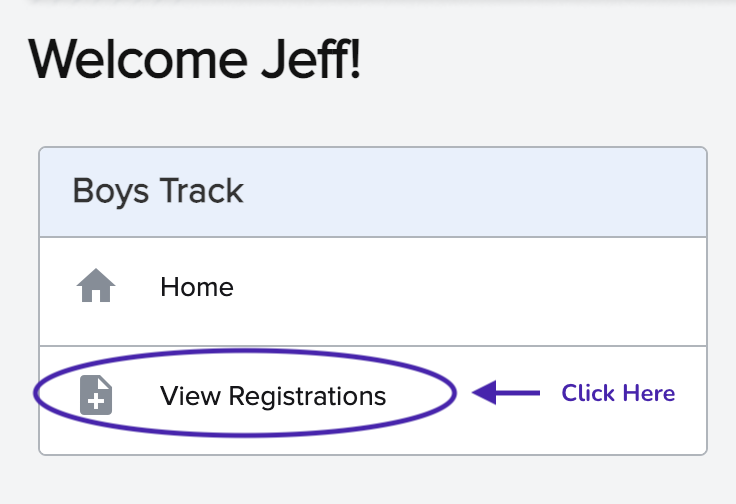
- If you have the "Head Coach" role in Aktivate: Click view your Registrations.
- If you have the "Sport Admin" role in Aktivate: Click on whichever of these you prefer.
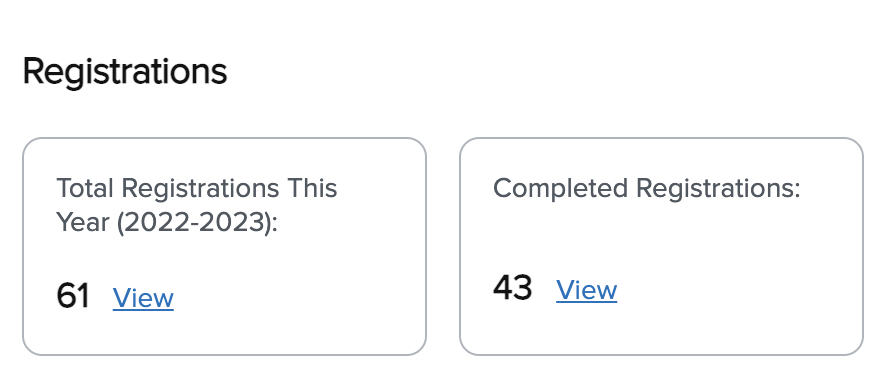
- The Registration list should look like this:

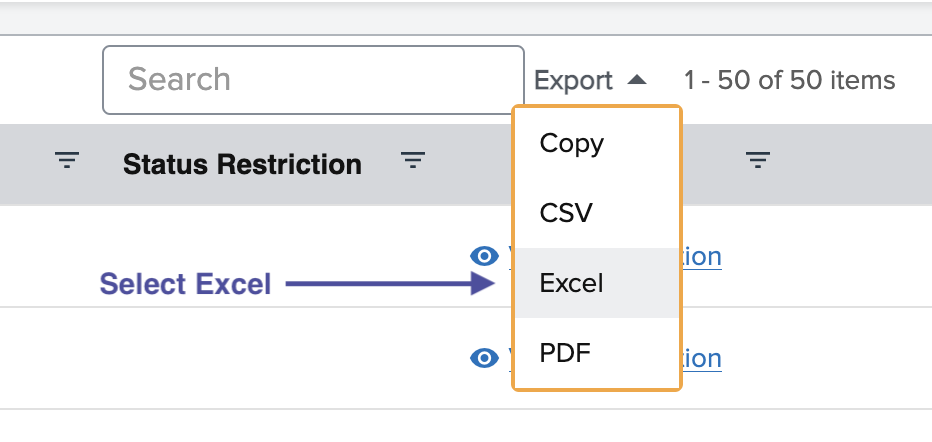
- Click on 'Export' and Choose 'Excel'.
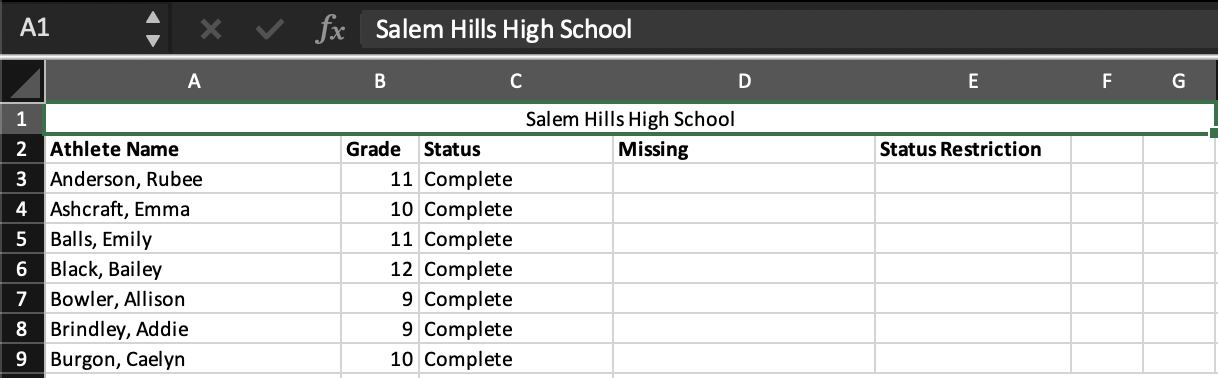
- Open the file and ensure the first 3 columns are as shown here. We ignore all other columns.
If there are any additional columns in the first 3 remove them so the file matches as shown below. Do not make any other changes to the file.
- Athlete Name
- Grade
- Status
- Return to meettrax.
- Click on "Athletes" from the "Manage" tab for your team.
- Click on "Import Athletes".
- Choose the Aktivate Option.
- Fill out the form.
- Select the gender of the roster you exported. Make sure you choose the correct gender!
- Choose if you want to only import athletes that are "Complete" in Aktivate.
- Select the file and click "Import".
- The file will be processed and you will be notified how many athletes will be imported.
As your roster changes in Aktivate you can repeat this process as many times as needed. Duplicates will not be created so long as the athletes name and grade information does not change.
TIP
The import process will never delete athletes if they are removed from Aktivate. You will need to delete each athlete manually.
Importing athletes from TFRRS
Follow these instruction to import your team roster from TFRRS into meettrax.
- Login to TFRRS.
- On the roster page, click the download icon shown here:
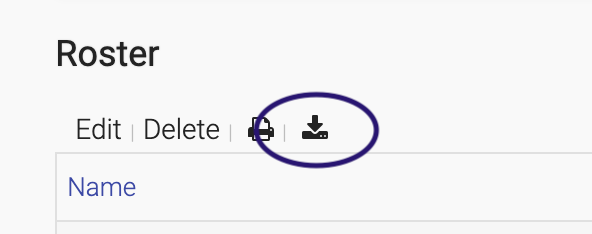
- Return to meettrax.
- Click on "Athletes" from the "Manage" tab for your team.
- Click on "Import Athletes".
- Choose the TFRRS Option.
- Select the file you downloaded from TFRRS and press the "Import" button.
- The file will be processed and you will be notified how many athletes will be imported.
As your roster changes in TFFRS you can repeat this process as many times as needed. Duplicates will not be created so long as the athletes TFFRS ID does not change. Athlete information will automatically be updated if changes have been made in TFFRS (ie, the eligibility year).
TIP
The import process will never delete athletes if they are removed from TFRRS. You will need to delete each athlete manually.